
Upload and share documents
Updated 18 October 2026
Documents keeps files such as contracts, plans and price sheets in your workspace. Only people in your workspace can open them until you share one. You can share a file with a client, who sees it in their portal, or with another business on Fountain. Everyone on the team can open documents; owners and managers can upload, share and delete.
Availability Every plan. Owners and managers upload and share.
Steps
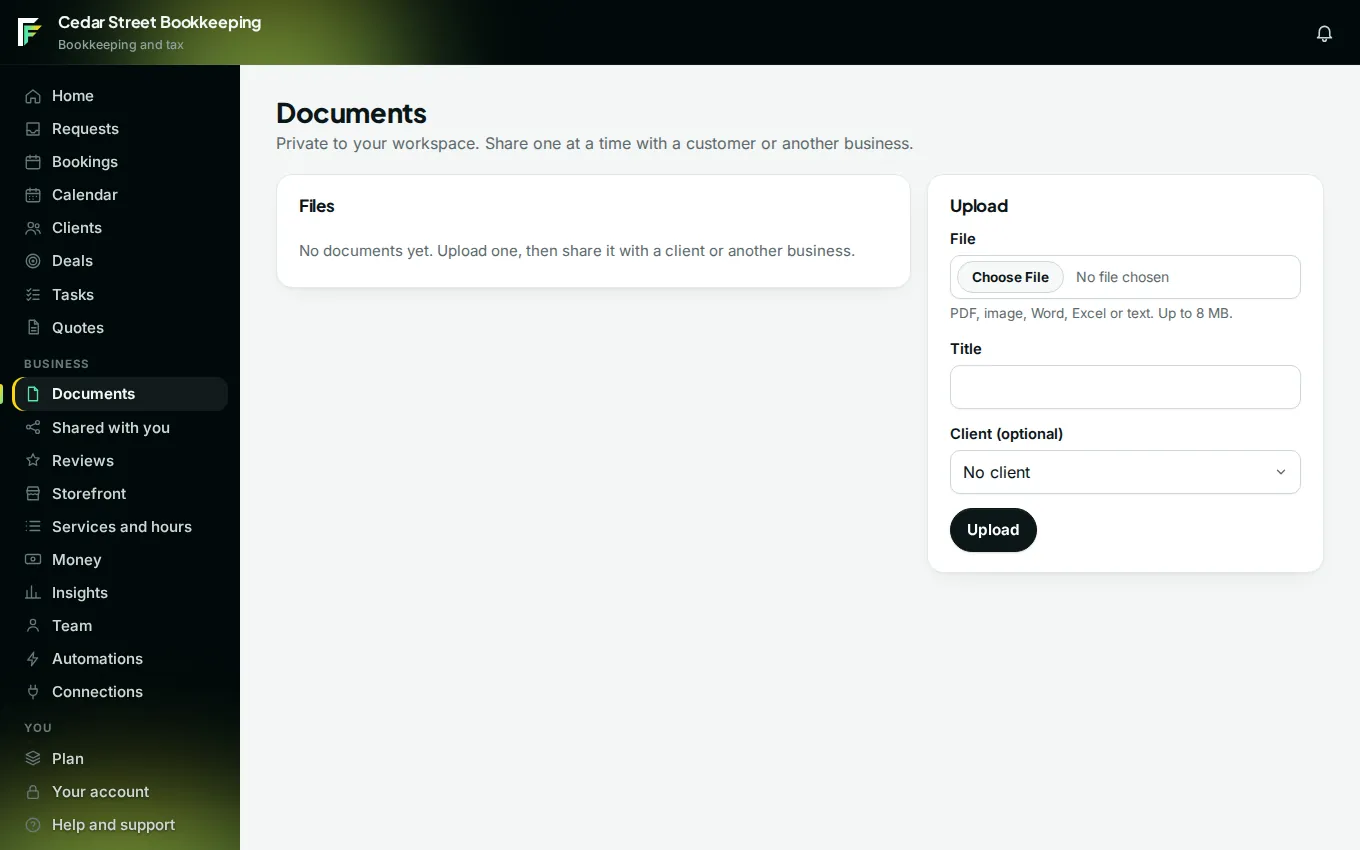
- In the menu, choose Documents. On a phone, it is under More.
- Under Upload, choose the File. You can use PDF, PNG or JPG images, Word (.docx), Excel (.xlsx) or text (.txt) files up to 8 MB.
- Give it a Title, pick a client if it belongs to one, and choose Upload.
- To share it with a client, open that client and find Documents in their portal. Pick the document and choose the Share with button.
- To share it with another business, choose Share next to the file in Documents, type their Business address and choose Share this file. The business address is the last part of their page address, after
/s/. - To stop sharing, choose Stop sharing under the file.
What it can and cannot do
- Fountain accepts PDF, PNG, JPG, Word (.docx), Excel (.xlsx) and text files, each under 8 MB. Older .doc and .xls files are not accepted.
- Fountain checks that each file matches the type its name says.
- Each share is one file to one client or one business. Stopping sharing takes it away from them straight away.
- A deleted file cannot be brought back.
- Staff can open documents but cannot upload, share or delete them.
What you should see
The file appears in the list with its size, client and date, and under it a line for each share. A client sees the file under Documents from your business in their portal and can download it. Another business sees it on their Shared with you page, and can open that one file and nothing else.
To delete a file, choose Delete and confirm. The file and every share of it are gone for good.
If it does not work
- "Upload a PDF, a PNG or JPG image, a Word .docx, an Excel .xlsx or a .txt file." Other file types are not accepted. Save it as a PDF and try again.
- "Files must be under 8 MB." or "Your plan's document storage is full." See Document storage limits.
- "That file does not look like the type its name says." The file's name ending does not match what is inside. Save it again from the app that made it.
- "No other workspace has that address." Check the business address with the other business.
- You do not see Documents. Documents are switched off in clinic and care workspaces.
Still stuck? Contact Fortis support and a person replies by email.