
Add services and prices
Updated 18 October 2026
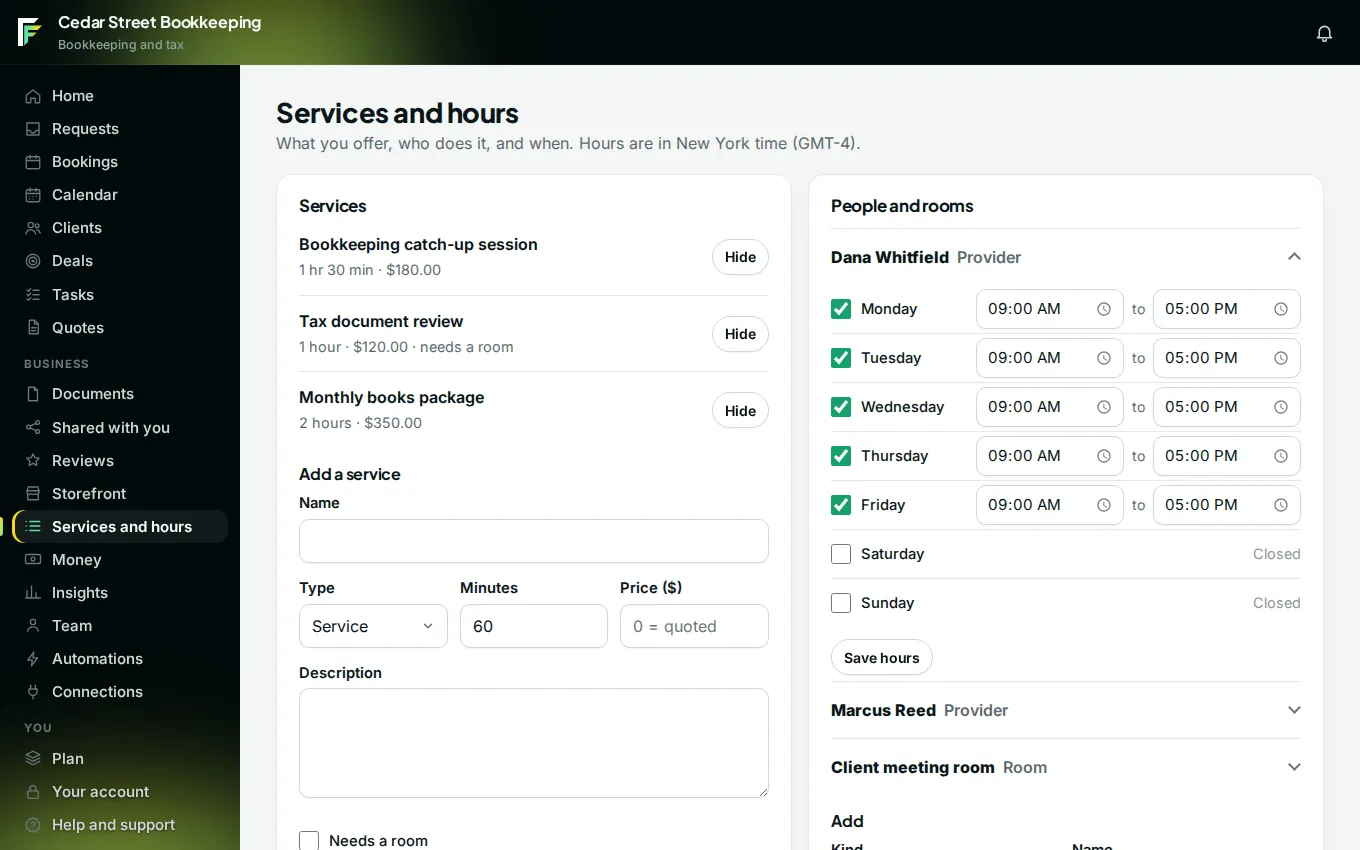
Your services are what customers pick from on your page. You manage them on Services and hours. The name follows your kind of business, so you may see Packages and hours, Sessions and hours or Orders and hours instead. Owners and managers can change it.
Availability Every plan. Owners and managers.
Steps
- In the menu, choose Services and hours (or the name your workspace uses). On a phone, it is under More.
- Under Add a service, type the Name and pick the Type.
- Set Minutes, in steps of 15.
- Type a Price ($). Leave it at 0 or empty if you price each job by quote.
- Add a Description if it helps customers choose.
- If the service needs a room, studio or similar space, tick the box that says so.
- Choose Add.
- To take a service off your page, choose Hide next to it. To put it back, choose Show.
- Open Storefront and publish your changes. See Preview and publish your page.
What it can and cannot do
- Each service has one price, or none if you price it by quote, when it shows as "Quoted".
- A hidden service stays in Fountain, and you can show it again at any time.
- Changes reach your public page only when you publish.
- Staff cannot open this page.
What you should see
The new service appears in the list with its length and price, or "Quoted". It reaches your public page the next time you publish. Each service on the page has a Request this button.
New workspaces come with sample services for their kind of business. They stay hidden until you choose Show, so check each one first. If you used Start from your website on Storefront, the services you kept are added here too.
This page does not edit or delete a service today. To change one, hide it and add it again with the new details.
If it does not work
- "Show at least one service." when you publish. Choose Show on at least one service, then publish again.
- The service is not on your page. Check it says Hide (which means it is shown), then publish your Storefront.
- You cannot see this page in the menu. Staff accounts cannot change services. Ask the workspace owner.
Still stuck? Contact Fortis support and a person replies by email.