
Use a client's timeline
Updated 18 October 2026
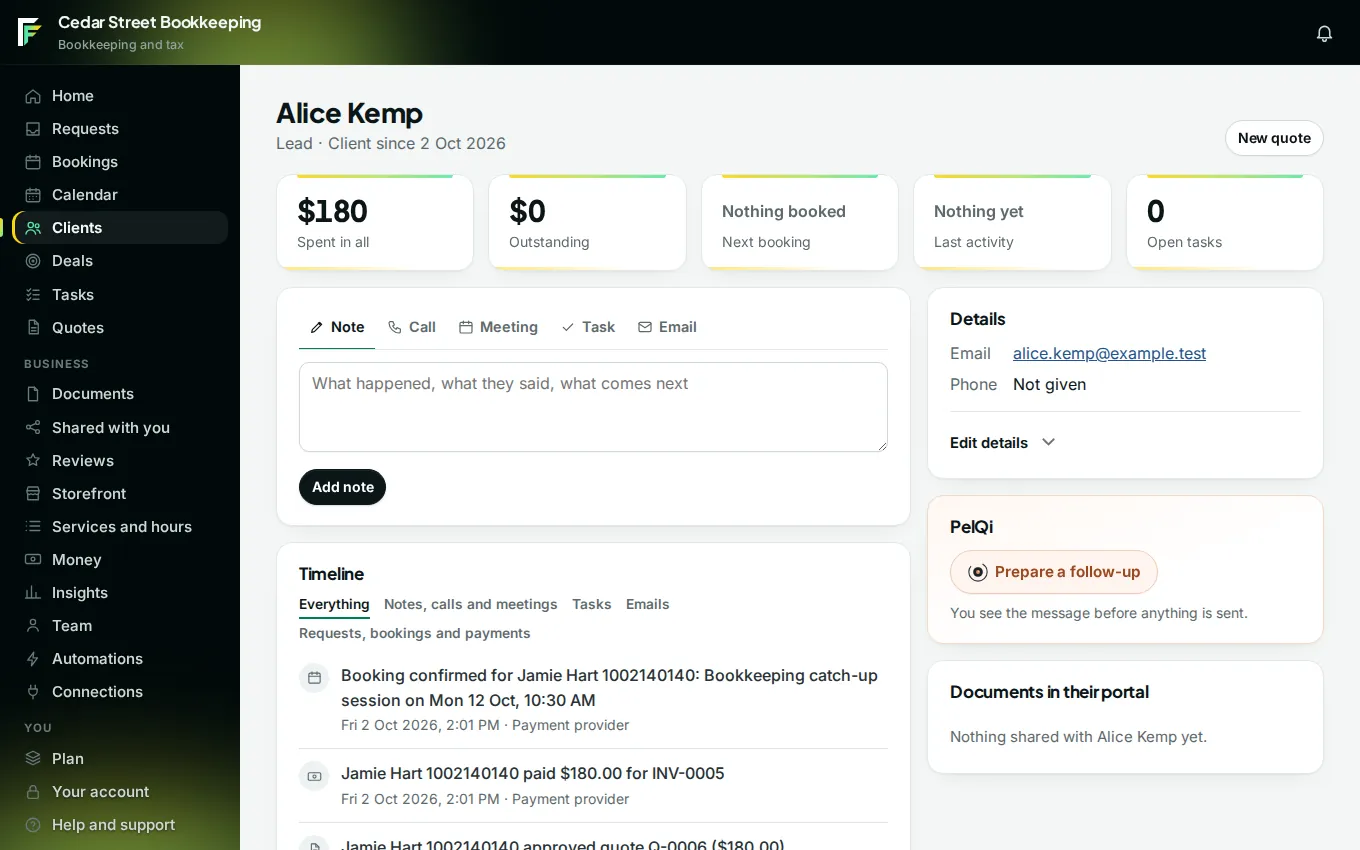
Each client's page brings everything about them together. The figures at the top show what they have spent, what is outstanding, their next booking, their last activity and their open tasks. Below that, the timeline lists their requests, bookings, quotes and payments beside your team's notes, calls, meetings, tasks and emails, newest first.
Availability Every plan: Starter and Growth.
Steps
- Open Clients and choose a name.
- Above the timeline, pick what to add: Note, Call, Meeting, Task or Email.
- For a note, write what happened and choose Add note.
- For a call, say what it was About, choose How it went (Spoke to them, Left a message, No answer, or Busy, call back), check the day and time, and choose Log call.
- For a meeting, say What it is, set the day, time and length, choose a Reminder, and choose Save meeting.
- For a task, say what needs doing, give it a due date, a priority and a reminder, and choose Add task.
- To narrow the timeline, choose Notes, calls and meetings, Tasks, Emails or Requests, bookings and payments. Everything shows it all again.
- To tick off an open task, choose Done beside it. Choose any line you added to open it, change it or delete it.
What it can and cannot do
- It keeps notes, calls, meetings, tasks and emails on a client, a company or a deal. Notes and calls count as done when you log them; a meeting set in the future stays open until its time.
- A client's page shows the newest 100 lines of their timeline.
- Whoever added a line can change or delete it, and owners and managers can change any line. Sent emails cannot be deleted.
- Staff can set tasks only for themselves, and see only their own tasks.
- Only owners and managers can send email, and health and care workspaces send no email to clients.
What you should see
What you add appears on the timeline straight away, in date order, with who added it. Notes, calls and meetings also update the client's Last activity. The emails Fountain sends them, such as quotes and booking messages, show on the timeline too.
Company pages and deal pages have the same composer and timeline. A company's timeline covers the company and everyone who works there.
What each role sees
- Owners and managers see everything on the timeline and can set tasks for anyone on the team.
- Staff can add notes, calls and meetings, and tasks for themselves. They see everyone's notes, calls and emails on a client, but only their own tasks, and no payment lines.
If it does not work
- There is no Email choice. The client needs an email address, and only owners and managers can send email. Health and care workspaces send no email to clients. See Health and care businesses.
- "Say what the task is." A task needs a name before it can be saved.
- "You can add tasks for yourself. Ask a manager to give tasks to others." Staff can only set tasks for themselves.
- "Emails stay on the timeline once sent." Sent emails cannot be deleted, so the record stays complete.
Still stuck? Contact Fortis support and a person replies by email.