
Use tasks, reminders and follow-ups
Updated 18 October 2026
Tasks keep track of what you need to do and when. The Tasks page lists your tasks and meetings in order, by your business's own clock, and Fountain can remind you when one is due. Everyone on the team can use tasks.
Availability Every plan. The morning follow-up list needs Growth.
Steps
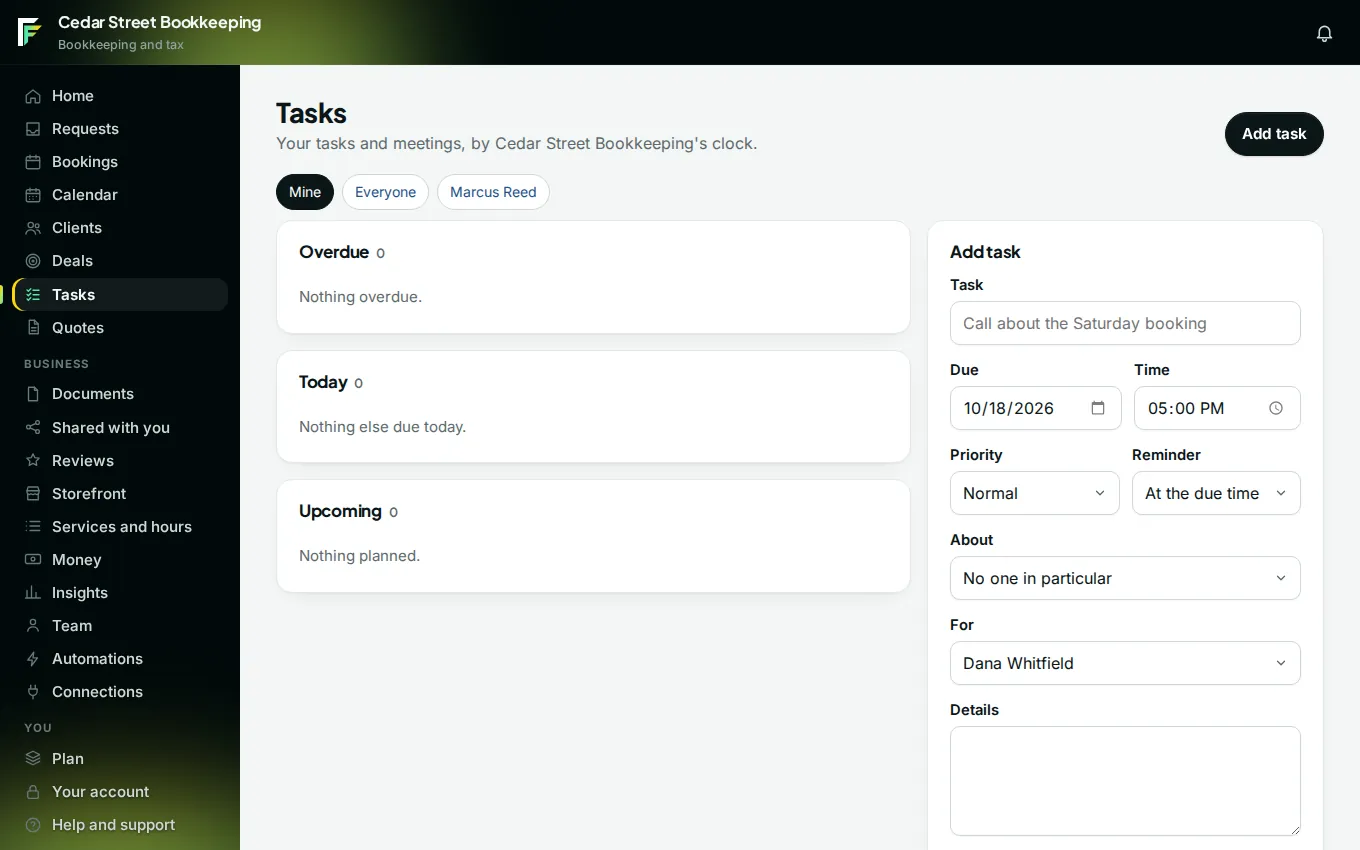
- Open Tasks from the menu. A number beside it shows how many of your tasks are overdue or due today.
- Under Add task, say what the Task is, and set the Due date and Time.
- Choose a Priority and a Reminder: No reminder, At the due time, 15 minutes before, An hour before, or A day before.
- Under About, choose the client it is for, if any. Owners and managers can choose who it is For.
- Choose Add task.
- When it is done, tick it. To change or delete a task, choose its name, then Save or Delete.
You can also add a task from a client's, company's or deal's page. See Use a client's timeline.
Follow-up dates
To remember to get back to a client, open their page, choose Edit details, set Follow up on and choose Save. The date shows on them in the Clients list, and you can set it for many clients at once with Follow up on in the list's actions.
The owner can turn on the Morning follow-up list in Automations to get, each morning, the clients they planned to get back to that day, in the app and by email.
What it can and cannot do
- Everyone on the team can add tasks. Staff can set tasks only for themselves; owners and managers can set them for anyone.
- A reminder needs a due date, and is sent once.
- Each group on the Tasks page shows up to 100 tasks.
- Staff can change only tasks they made or were given.
What you should see
Tasks are grouped into Overdue, Today, Upcoming and No due date, with Done this week below. Meetings you set with a time appear here too.
Reminders appear in the app and are sent to phones and browsers where you have turned notifications on. See Turn on notifications on a device.
Owners and managers can switch between Mine, Everyone and each person on the team. Staff see their own tasks.
If it does not work
- "You can add tasks for yourself. Ask a manager to give tasks to others." Staff can only set tasks for themselves.
- "You can only change your own activities." Staff can change tasks they made or were given.
- No reminder arrived. A reminder needs a due date. Check that notifications are on for your device, and see Device notifications are not arriving.
Still stuck? Contact Fortis support and a person replies by email.