
Use the notification bell
Updated 18 October 2026
The bell at the top of every Fountain page tells you what has happened in your workspace. A number on it shows how many notices you have not read.
Availability Every plan: Starter and Growth.
Steps
- Choose the bell at the top of the page to open the latest notices.
- Choose Mark all as read to clear the number.
- Choose See all notifications to open the Notifications page.
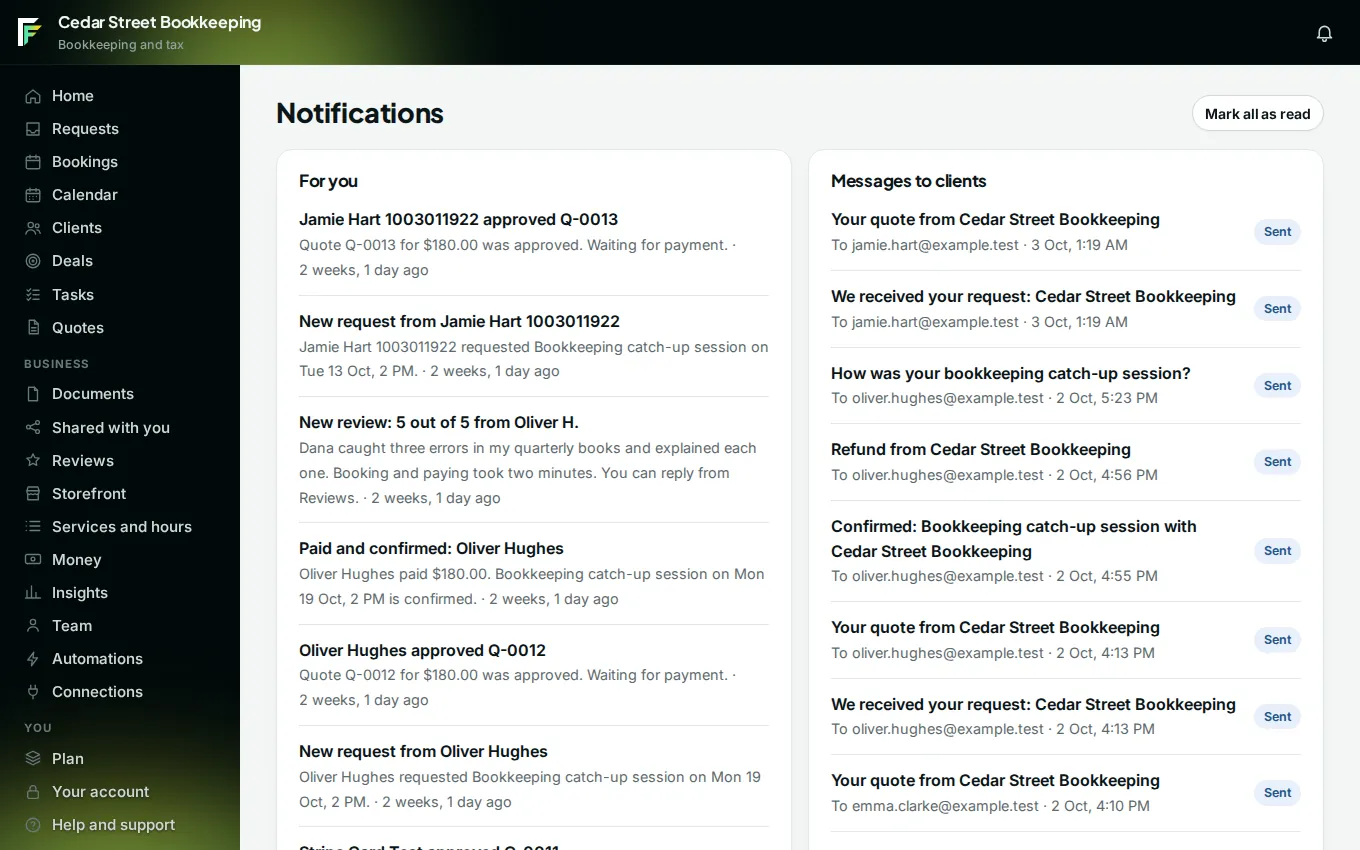
- On the Notifications page, look under For you for your notices. Unread ones are marked New.
- Next to your notices, see the emails Fountain sent to customers, each with its status. If one says Failed, an owner or manager can choose Retry.
What it can and cannot do
- The Notifications page shows 50 notices and 50 emails to customers at a time. Choose Older at the bottom to see earlier ones, and Newer to come back.
- Owners and managers can choose Retry on a failed customer email. Staff can see the statuses but cannot retry.
- Emails to you and your team, such as invitations and sign-in codes, are not listed on this page.
- Notices about money, such as a payment, a refund or an overdue balance, go only to people who can see payments: owners and managers. Staff do not see them.
What you should see
Notices include new requests, new reviews, the outcome of a review you reported, a connection that needs reconnecting, follow-ups due today, and news about your plan or trial. Task and meeting reminders appear for the person they are assigned to.
Each person has their own read state. When you mark notices read, they still show as new for the rest of the team until each of them marks them read.
Emails to customers show one of these statuses: Queued (waiting to go), Sent, Failed (Fountain tried several times) or Suppressed (not sent, for example because the customer has no email address).
If it does not work
- You want notices on your phone or computer. See Turn on notifications on a device.
- An email to a customer says Failed. Check the address on the customer's record, then choose Retry. See Emails from Fountain are not arriving.
Still stuck? Contact Fortis support and a person replies by email.