
A tour of your workspace
Updated 21 October 2026
Your workspace is where you run the business day to day. This is a quick map of where things are, so you can find them later.
Availability Every plan. Some menu items need Growth or a particular role.
Steps
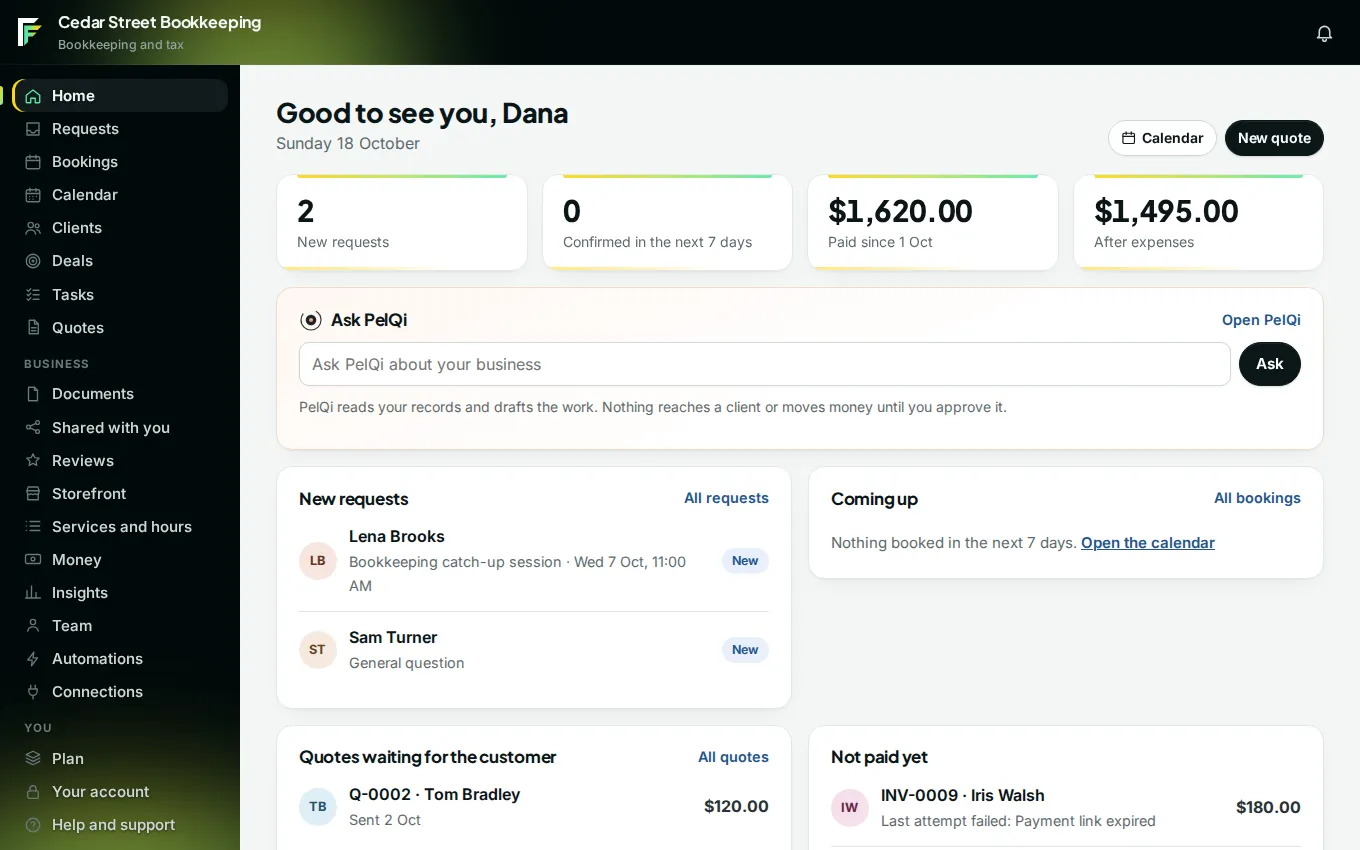
- Start on Home. It shows new requests, bookings coming up in the next 7 days, quotes waiting for the customer, payments not made yet and, until you finish, the list Get ready to take requests.
- Use the menu down the left side on a computer. The top part is your daily work: Requests, Bookings, Calendar, your customers, Deals, Tasks and Quotes.
- Under Business you find your page and settings: Shared with you, Storefront, your services and hours, Money, Insights, Team, Automations and Connections. Some businesses also see Documents and Reviews.
- Under You are Plan, Your account, Help and support and Sign out.
- Choose the bell at the top to see your latest notifications. Choose Mark all as read or See all notifications.
- Choose Ask PelQi in the corner to ask the assistant about your business or have it draft work for you to approve.
- On a phone, use the tab bar at the bottom: Home, Requests, Bookings, your customers, and More for everything else.
What it can and cannot do
- The menu follows your role. Staff do not see Money, Storefront or Automations, for example.
- On Starter, Growth pages still open but explain what Growth adds. Only the owner can start the trial from there.
- PelQi drafts work, but nothing reaches a customer or moves money until someone approves it.
- PelQi answers up to 15 questions a month on Starter and up to 1,000 a month on Growth.
What you should see
Words fit your kind of business. For example, your customers may be called clients, and the services page may be named after what you offer. The menu also depends on your role: staff do not see Money, Storefront or Automations, for example.
If it does not work
- A menu item is missing. Your role does not include it, or your kind of business does not use it. See Owner, manager and staff.
- The page looks old or broken. Refresh it. See The page looks out of date.
Still stuck? Contact Fortis support and a person replies by email.