
Take your first booking
Updated 18 October 2026
This is the whole journey of one booking in Fountain, with a link to the detailed article for each part. It helps to try it once yourself, for example with your own second email address playing the customer.
Availability Every plan. Only the owner connects Stripe; owners and managers run the other steps.
Steps
- Publish your page so customers can reach it. See Preview and publish your page.
- To take card or bank payments, connect Stripe from Money. See Connect Stripe.
- A customer sends a request from your page. It appears under Requests and on Home. See See new requests.
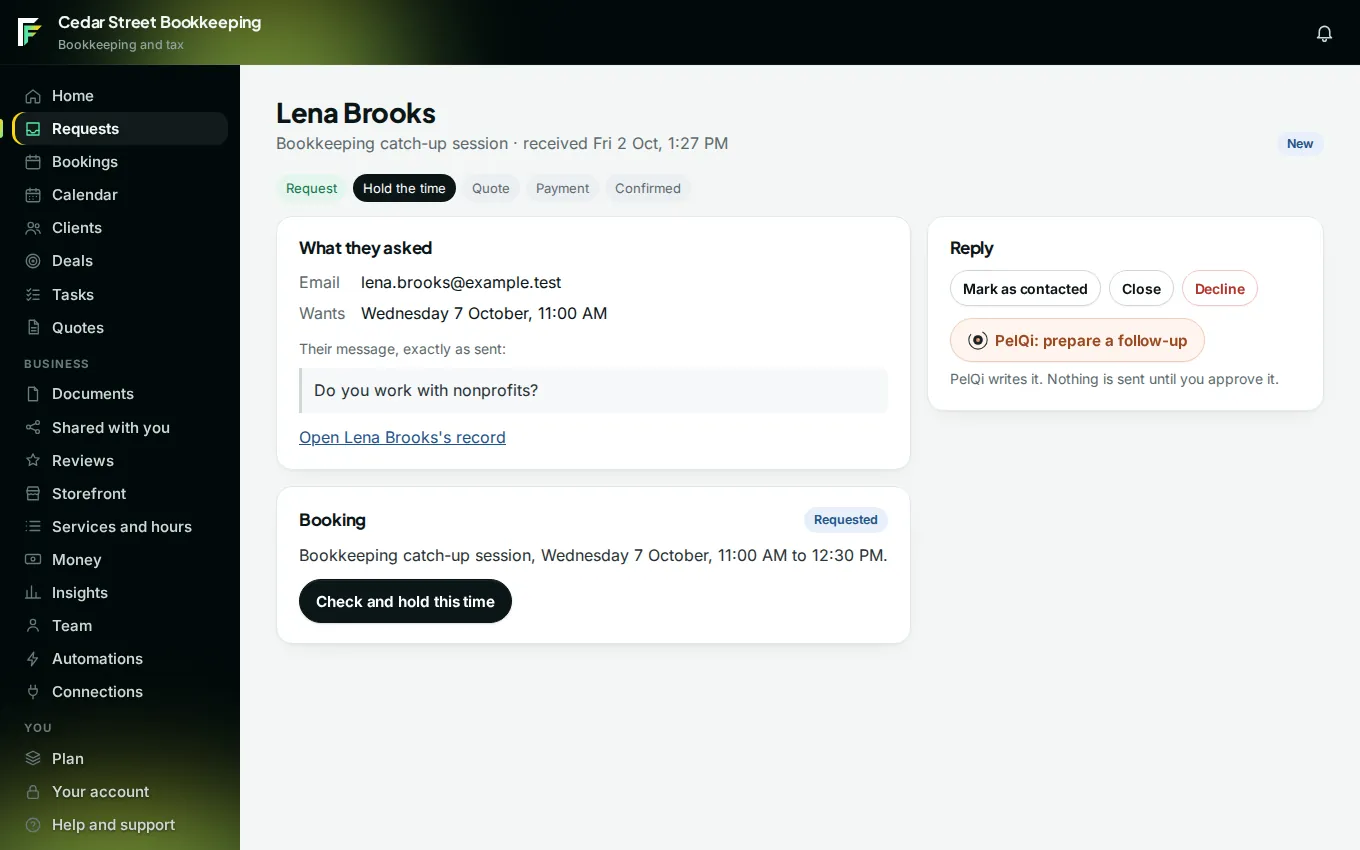
- Open the request and choose Check and hold this time. If they did not ask for a time, use Offer a time. The time is held for a while so nobody else can take it. See Hold a time.
- Choose Prepare the quote, check the prices and any deposit, and send it to the customer. See Create and send a quote.
- The customer opens the quote from their email, approves it and pays, or pays the deposit. See How customers pay.
- Once the payment goes through, the booking is confirmed and the customer is emailed. See Confirm a booking.
What it can and cannot do
- Owners and managers can hold times, send quotes and confirm bookings. Staff can see them but not act on them.
- A held time is kept for 48 hours by default, then shows Hold expired.
- Fountain adds no fee to card payments. Stripe's own fees come from your business.
What you should see
On the request page, a progress line shows Request, Hold the time, Quote, Payment and Confirmed, and marks each step as it is done. The booking then shows as Confirmed under Bookings and on your Calendar.
If it does not work
- No requests arrive. Check that your page is published and has at least one service showing.
- The time cannot be held. It may clash with another booking or fall outside your hours. Choose one of the free times Fountain suggests.
- The hold ran out. The booking shows Hold expired. Choose Check and hold this time again.
- The customer cannot pay. See A customer cannot pay.
Still stuck? Contact Fortis support and a person replies by email.