
Create and send a quote
Updated 18 October 2026
A quote tells a customer what the work costs and lets them approve and pay from a private link. You can start one from Quotes, from a held booking, or from a deal. Owners and managers can create and send quotes; staff can view them.
Availability Every plan. Owners and managers.
Steps
- Open Quotes in the menu and choose New quote. If the time is already held on a booking, you can instead open the booking and choose Prepare the quote.
- Pick the client. If the quote is for a booking, choose it under Booking (optional). Linking a booking keeps that time held while the customer decides.
- Under Start from a template (optional), pick a saved template or leave it blank, then choose Create draft.
- On the draft, fill in each line: Description, Qty, Price ($) and Counts as. A quote can have up to 50 lines; choose Save draft for two more empty lines. The total updates as you type.
- Check Deposit to confirm (%) and Balance due (days before the booking). Fountain fills these in to suit your kind of business; change them for this customer if you need to.
- Add any Notes for the customer, and an Agreement the customer signs (optional) if you want them to sign terms as they approve.
- Choose Save draft to come back later, or Send to followed by the customer's name to send it now.
What it can and cannot do
- A quote has up to 50 lines, each with a quantity from 1 to 999.
- A sent quote cannot be edited. Changing the price makes a new version that the customer approves again.
- A quote is valid for 14 days, or as long as its template says, counted by your workspace's own date. A new version is valid for 14 days. After that the quote shows Expired and can no longer be approved.
- Fountain does not remind a customer about an unanswered quote unless you use the quote reminders in Automations, which need Growth.
- Staff can view quotes but cannot create, send or change them.
What you should see
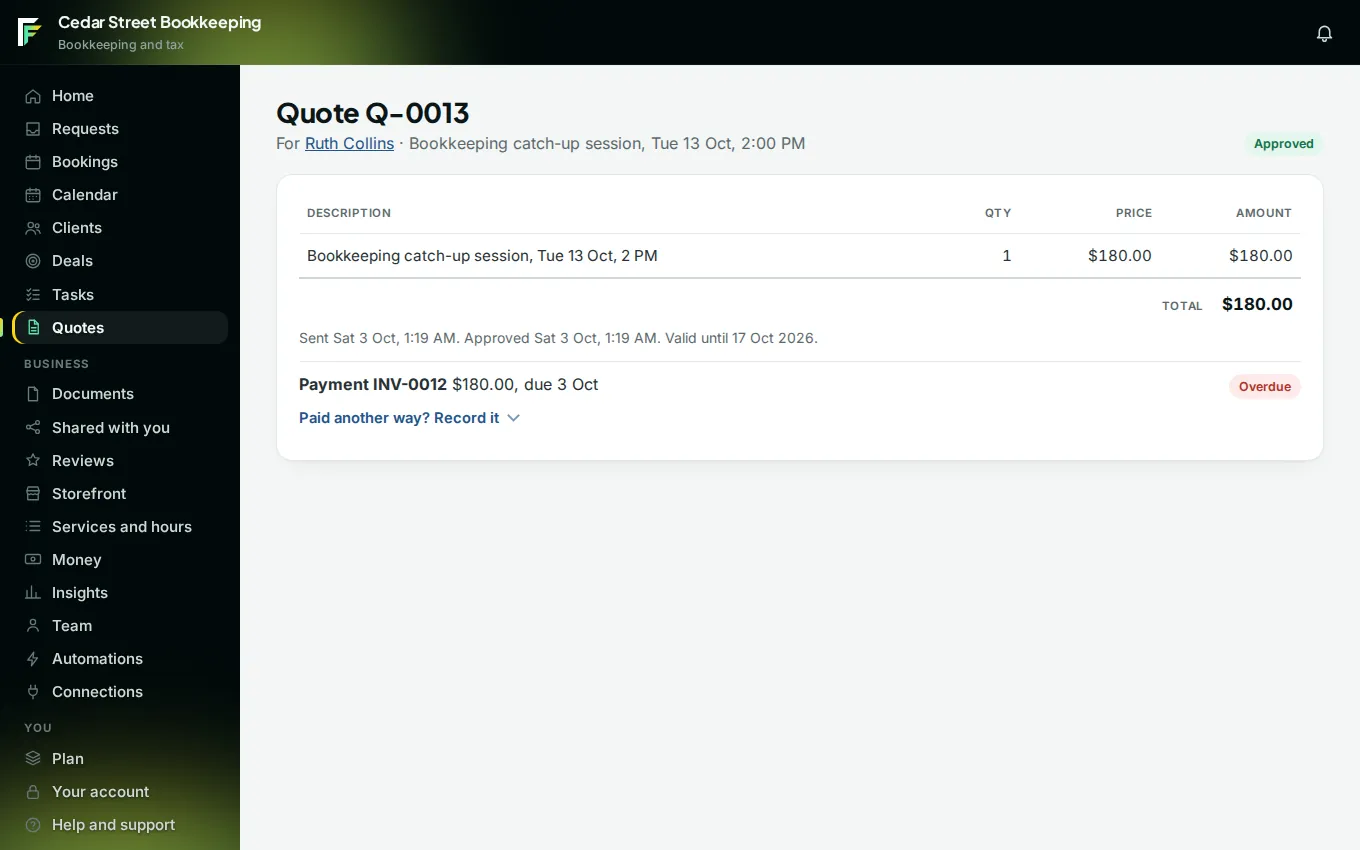
After you send, Fountain shows "Sent. The customer has been emailed a link to approve it." The customer link also appears at the top of the quote, so you can share it another way if you prefer. The quote shows as Sent on the Quotes list and on Home until the customer answers.
A quote is valid for 14 days unless the template you started from says otherwise. When the customer approves, the quote becomes Approved and the invoice for the deposit or full amount appears on the quote. If they decline, you are told, and any held time stays held until it expires or you release it.
Change a quote after it is sent
A sent quote cannot be edited, because the customer has already seen it. To change the price, open the quote and use Change the price, then Create the new version. Fountain makes a new draft with the next quote number. Send it when it is ready; the old version is then marked Superseded and can no longer be approved. You can also revise a quote the customer declined or that has expired.
If you use PelQi, Ask PelQi (needs approval) prepares the price change for you to approve first.
If it does not work
- "Add at least one line to the quote." Give at least one line a description.
- "A quote needs a total above zero before it is sent." Add a price to at least one included line.
- "Check the quantity and price on each line." Quantities run from 1 to 999, and prices cannot be negative.
- "Add at least two packages for the customer to choose from, or make the package included." See Quote templates and packages.
- "Marked as sent. Email was not sent." The quote is sent but the email did not go. Copy the customer link shown on the quote and send it yourself, and check the customer's email address. See Emails from Fountain are not arriving.
- No New quote button. Your role can view quotes but not create them. Ask the owner, or see Owner, manager and staff.
Still stuck? Contact Fortis support and a person replies by email.