
See your new requests
Updated 18 October 2026
When a customer asks about a service or asks for a time, the request lands on Requests. Everyone on your team can see requests. Owners and managers can act on them.
Availability Every plan. Requests from Zapier or Make need Growth.
Steps
- Open Requests from the menu. On a phone it is in the tab bar at the bottom.
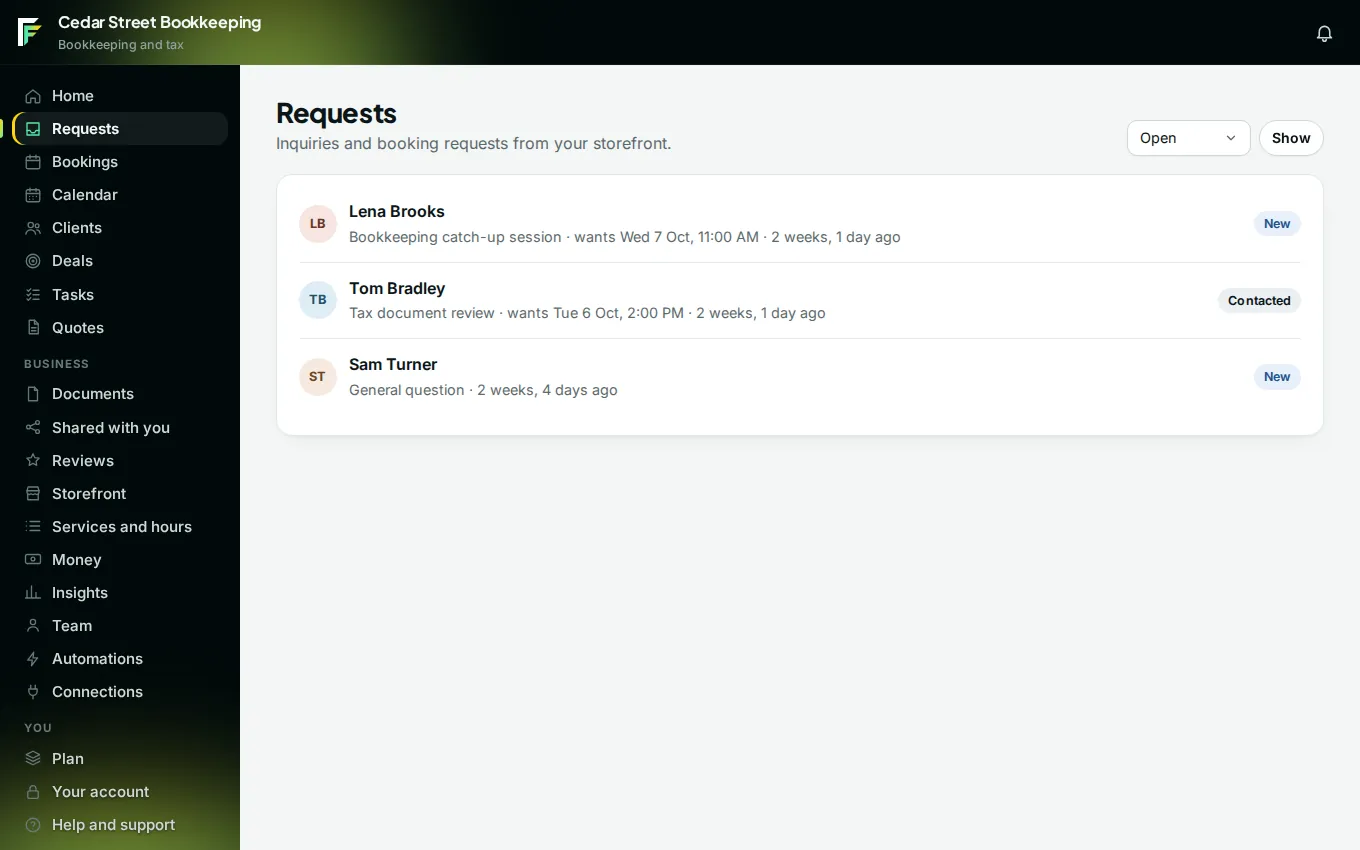
- The list shows open requests first. To see others, pick Open, Converted, Closed or All in the Show box, then choose Show.
- Each row shows the customer's name, the service they asked about (or General question), the time they want if they chose one, and how long ago it arrived.
- Choose a name to open the request.
What it can and cannot do
- Each view shows up to 100 requests.
- Everyone on the team can see requests. Owners and managers can act on them.
- The form takes up to five sends from one connection in ten minutes, then asks the sender to wait.
- Fountain cannot see a request that never reached it, for example while your page is not published.
What you should see
New requests also appear on Home under New requests, and you get a notice in the bell. The customer gets an email saying their request arrived, with a link to track it. If they did not have a client record yet, Fountain adds one.
Open means new or contacted. Converted mostly shows requests brought in from another app that were already won there.
Where requests come from
- Your page. The request form on your published Fountain page.
- Your own website. The request form you can add to another site. See Add the request form to your website.
- Booking links. Book buttons on Google, Instagram, Facebook and other places open your page. A new client who came that way is marked with where they came from. See Booking links.
- Zapier or Make. On Growth, an incoming address can add requests from other tools. See Zapier and Make.
- A file. Requests imported from another app. See Import from a file.
If it does not work
- "No requests here." Check the Show box is set to Open or All. Make sure your page is published, or customers cannot reach the form. See Preview and publish your page.
- You cannot see Requests in the menu. Your role may not include it. Ask the workspace owner. See Owner, manager and staff.
- A customer says they sent a request but it is not here. The form refuses times less than an hour away, and too many sends from one connection are paused for a few minutes. Ask them to try again.
Still stuck? Contact Fortis support and a person replies by email.