
Open and answer a request
Updated 18 October 2026
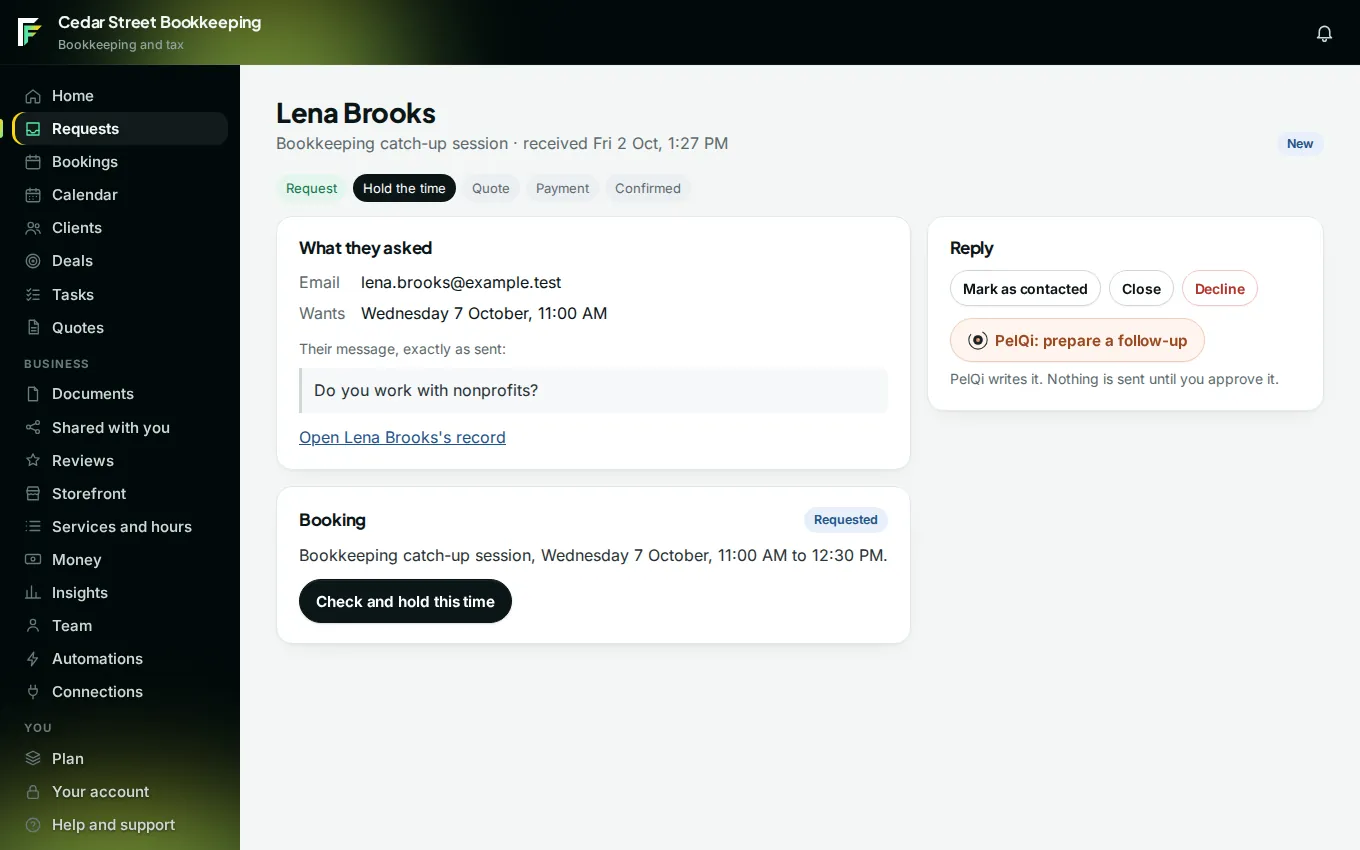
The request page shows what the customer asked for and what to do next. A progress line across the top runs from Request to Hold the time, Quote, Payment and Confirmed. Owners and managers can act here. Staff can read it.
Availability Every plan. Owners and managers act; staff can read. Making a deal needs Growth.
Steps
- Open Requests and choose the customer's name.
- Read What they asked: their email, phone if given, the time they want, and their message exactly as sent.
- If they asked for a time, choose Check and hold this time in the Booking box. If that time is taken, choose one of the free times shown, such as Hold Tue 6 Oct, 2 PM.
- If they did not ask for a time, use Offer a time: pick the service, a Date and a Time, then choose Check and hold.
- Once the time is held, choose Prepare the quote. You can also choose Ask PelQi to draft it.
- If you got back to them another way, such as by phone, choose Mark as contacted.
What it can and cannot do
- It shows the customer's message exactly as they sent it.
- Holding a time, preparing the quote, marking as contacted and closing are for owners and managers. Staff can read the request.
- PelQi writes drafts only. Nothing goes to the customer until you approve it. A follow-up needs the customer's email address, and is not offered in health and care workspaces.
- Make this a deal shows only on Growth, for owners and managers.
What you should see
After a hold, a message says "Held. Next, prepare the quote." The Booking box shows the time and when the hold ends. A new request moves from New to Contacted when you hold a time.
Other things you can do here
- Open the customer's record with the link under their details, to see their history or email them.
- PelQi: prepare a follow-up writes a message to the customer. Nothing is sent until you approve it.
- Make this a deal adds the request to your deals, where deals are on (Growth).
- Close or Decline when you cannot help. See Decline or close a request.
If it does not work
- "That time is not available: no one is free." Someone is booked or busy then. Pick one of the free times shown. See Hold a time.
- "Outside working hours." The time falls outside the hours set for the people who give that service. Check Set your hours.
- You see no buttons. Your role can read requests but not answer them. Ask the owner.
- "Enter a date and a time." Fill in both before you choose Check and hold.
Still stuck? Contact Fortis support and a person replies by email.