
Your bookings list
Updated 18 October 2026
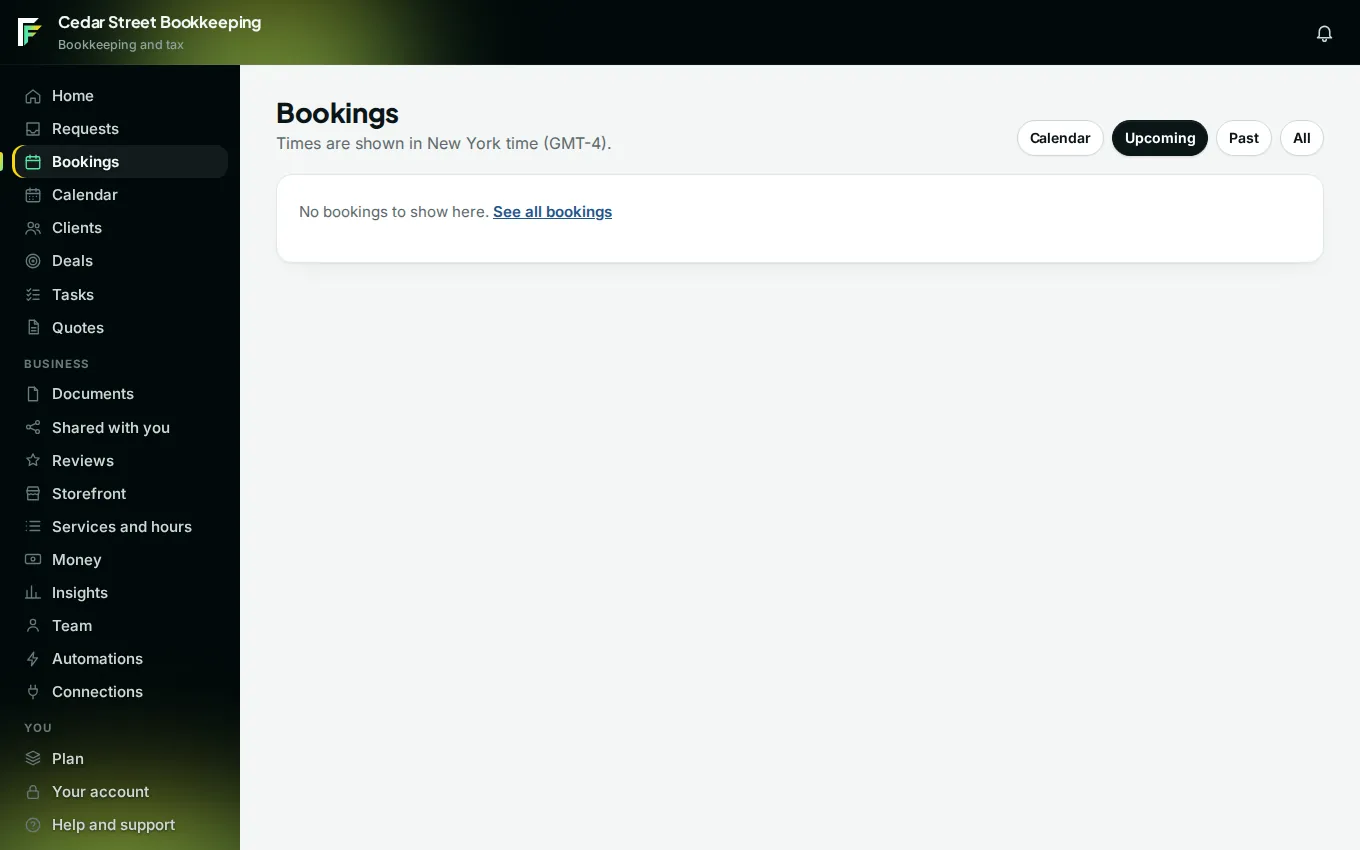
Bookings lists every booking by day, in your workspace's time zone. Everyone on your team can see it.
Availability Every plan: Starter and Growth.
Steps
- Open Bookings from the menu. On a phone it is in the tab bar at the bottom.
- Choose Upcoming, Past or All at the top.
- Choose a booking to open it.
- To see the same bookings laid out by week or day, choose Calendar.
What it can and cannot do
- It lists bookings. To hold, confirm, cancel or share one, open it.
- Each view shows up to 200 bookings.
- Times always follow your workspace's time zone. You cannot switch to another zone on this page.
- Everyone on the team can see it.
What you should see
Each booking shows its start and end time, the customer and the service. Held bookings also show when the hold ends. The badge on the right shows the status:
| Status | What it means |
|---|---|
| Requested | The customer asked for this time. Nothing is reserved yet. |
| Held | The time is reserved for this customer for a while. See Hold a time. |
| Awaiting payment | The customer approved the quote and the time is kept while they pay. |
| Confirmed | Paid, or confirmed by you. |
| Completed | It has happened and you marked it completed. |
| Hold expired | The hold ran out before payment. The time is free again. |
| Needs attention | Paid after the hold ran out, and the time had been taken. Open it to sort it out. |
| Declined or Cancelled | Turned down or called off. |
Upcoming shows requested, held, awaiting payment, confirmed and needs-attention bookings that start from 12 hours ago onward. Past shows everything that has started, newest first.
If it does not work
- "No bookings to show here." Choose See all bookings. A cancelled, declined or expired booking only shows under Past or All.
- The times look wrong. Times follow your workspace's time zone, named at the top of the page. See Set up your business.
Still stuck? Contact Fortis support and a person replies by email.