
Use the calendar
Updated 19 October 2026
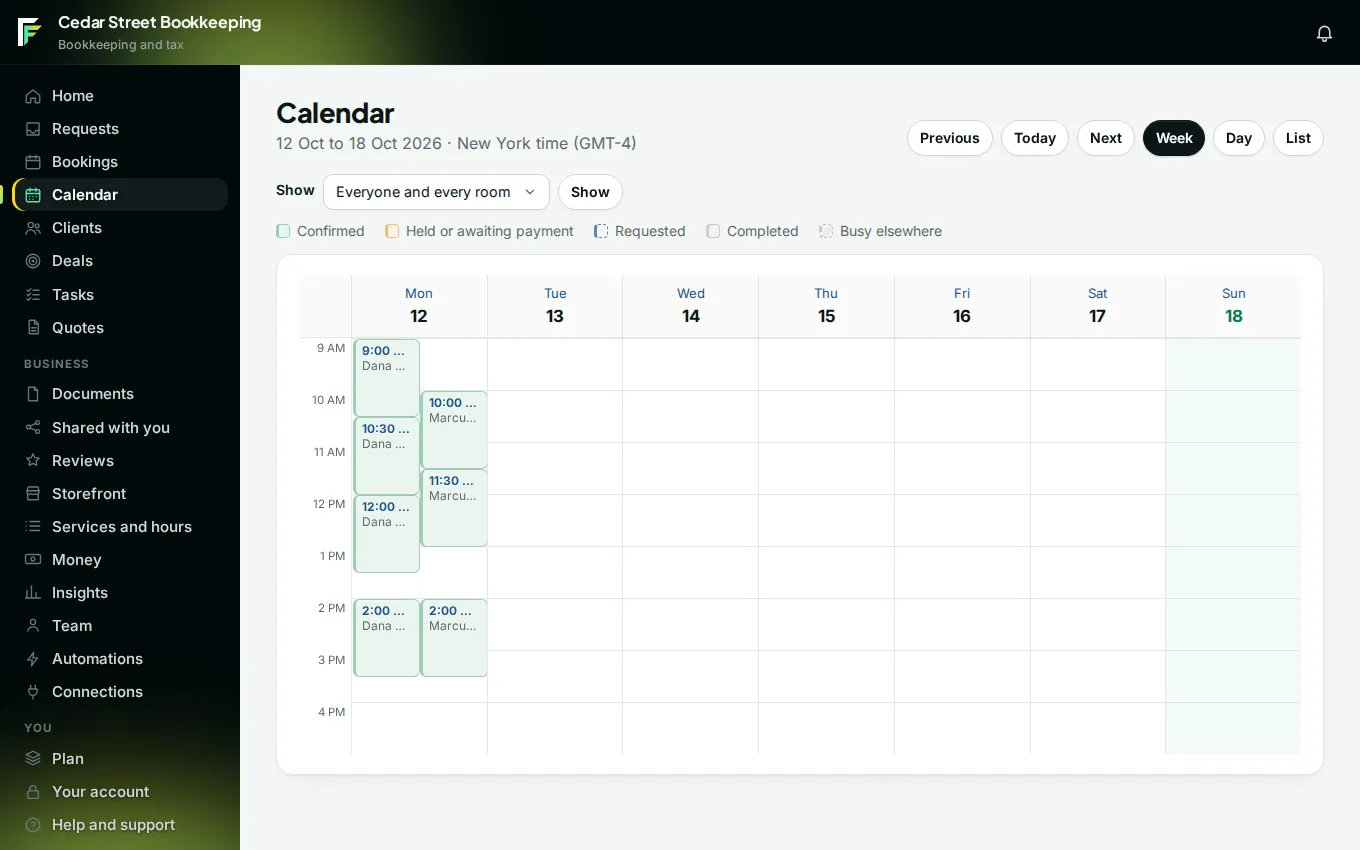
The calendar lays out your bookings by week or by day, in your workspace's time zone. Everyone on your team can see it.
Availability Every plan: Starter and Growth.
Steps
- Open Calendar from the menu. On a phone, open Bookings from the tab bar and choose Calendar.
- Choose Week or Day. Choose a date at the top of a column to open that day.
- Use Previous, Today and Next to move through the weeks or days.
- To see one person or one room, pick them in the Show box and choose Show. Pick Everyone and every room to see all again. The box appears when you have more than one.
- Choose a booking to open it. Choose List to go back to the bookings list.
What it can and cannot do
- It shows bookings and busy times from other calendars. Cancelled, declined and expired bookings are not shown.
- You can show everyone, or one person or room at a time.
- You cannot drag a booking to move it. Open it to act on it.
- Everyone on the team can see it.
What you should see
A key above the calendar explains the colours: Confirmed, Held or awaiting payment, Requested, Completed or no-show and Busy elsewhere. Bookings that overlap sit side by side. Each shows the start time, the customer and who it is with.
Striped blocks marked Busy are times someone is busy in another calendar. Busy for 12 hours or more shows as Busy all day under the date. See Busy times from other calendars.
The hours shown follow your working hours, and stretch when a booking falls outside them.
On a phone, the week shows as a list of days instead of a grid, with Nothing booked on free days. The day view keeps its grid.
If it does not work
- "Nothing booked" for the whole week. Choose See the next week, or check the Show box is not set to one person. Cancelled, declined and expired bookings are not shown.
- The times look an hour or more out. Check your workspace time zone, shown at the top of the page.
Still stuck? Contact Fortis support and a person replies by email.