
Invite a team member
Updated 21 October 2026
Owners can invite people to work in the workspace with them. Each person gets their own sign-in, and their role decides what they can see and do. Starter is for one person, so inviting your team is part of Growth.
Availability Growth. Owners only. Growth includes 15 team members; Starter is for the owner alone.
Steps
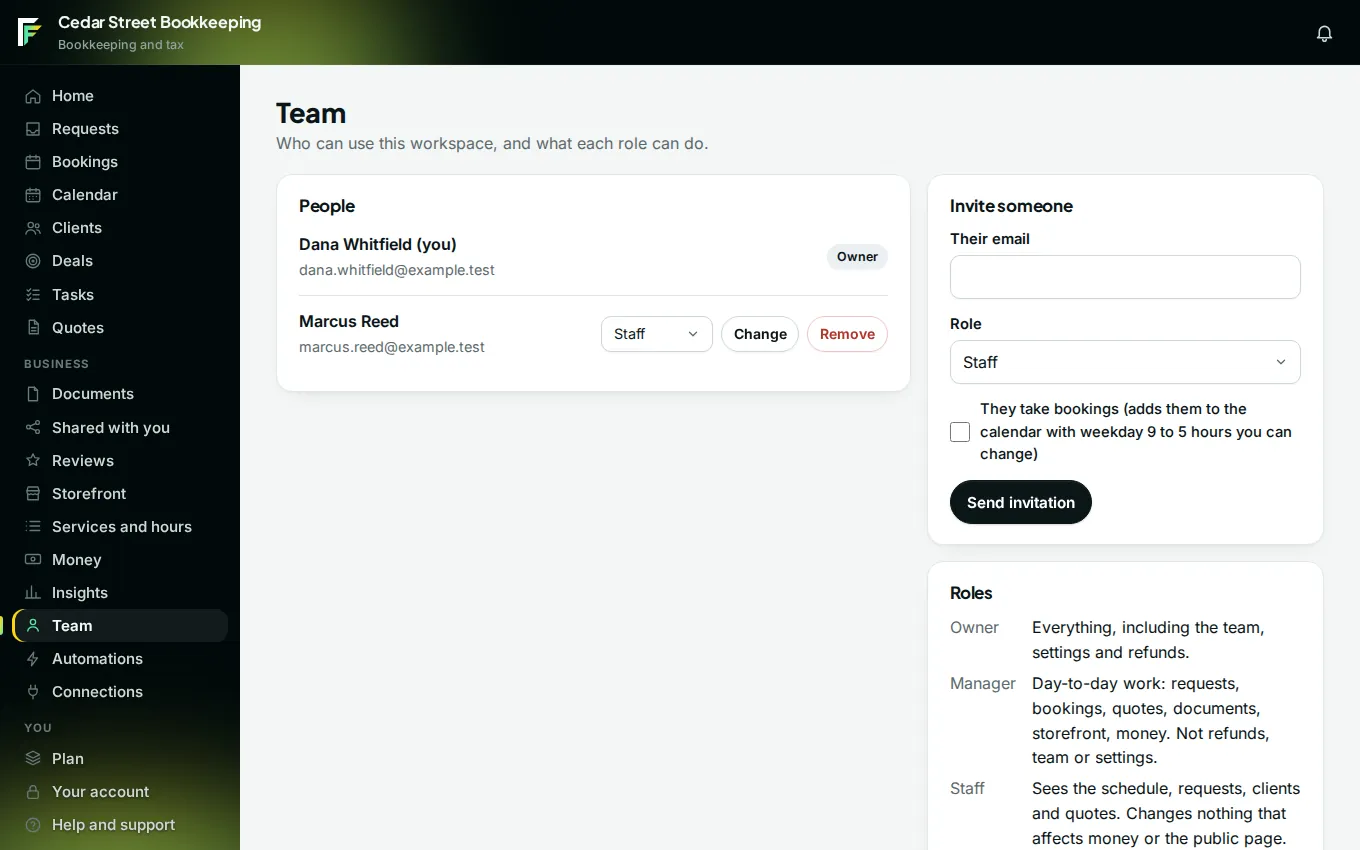
- Open Team from the menu (on a phone, under More).
- Under Invite someone, type Their email.
- Choose a Role: Owner, Manager or Staff. See Owner, manager and staff.
- If they will be booked by customers, tick They take bookings. This adds them to the calendar with weekday 9 to 5 hours that you can change.
- Choose Send invitation.
What it can and cannot do
- An open invitation takes a team place until it is accepted, withdrawn or expires.
- Fountain checks for a free place again when the invitation is accepted. If your plan has fewer places by then, for example after a Growth trial ends, the person is asked to come back to you.
- You can invite someone as Owner, Manager or Staff. You cannot invite someone who already has access: change their role instead.
- Fountain cannot tell you whether the invitation email reached them. You can copy the link and send it yourself.
What you should see
"Invitation sent to ..." and a box called Invitation link. Fountain emails the invitation, and you can also copy the link and send it yourself if the email does not arrive. The link works once, only for the invited address, for 7 days.
The person is listed under Waiting to join with the date the link stops working. Once they accept, they move to People.
Withdraw an invitation
Under Waiting to join, choose Withdraw. The link stops working straight away. Sending a new invitation to the same address also replaces the old one.
If it does not work
- "... is already on the team." That person already has access.
- "Starter is for one person, so inviting your team is part of Growth. Growth has room for 15 people." The workspace is on Starter. Move to Growth to invite people. See Team member limits.
- "Growth includes 15 team members, and they are all in use." Open invitations count as well as people. Withdraw one or remove someone.
- "Starter includes 3 team members, and they are all in use." The workspace is on the older Starter, kept until 21 November 2026. Withdraw an invitation, remove someone, or move to Growth.
- You do not see Invite someone. Only owners can invite people.
- The email did not arrive. Send them the link from the Invitation link box. See Emails from Fountain are not arriving.
Still stuck? Contact Fortis support and a person replies by email.