
Edit your page
Updated 21 October 2026
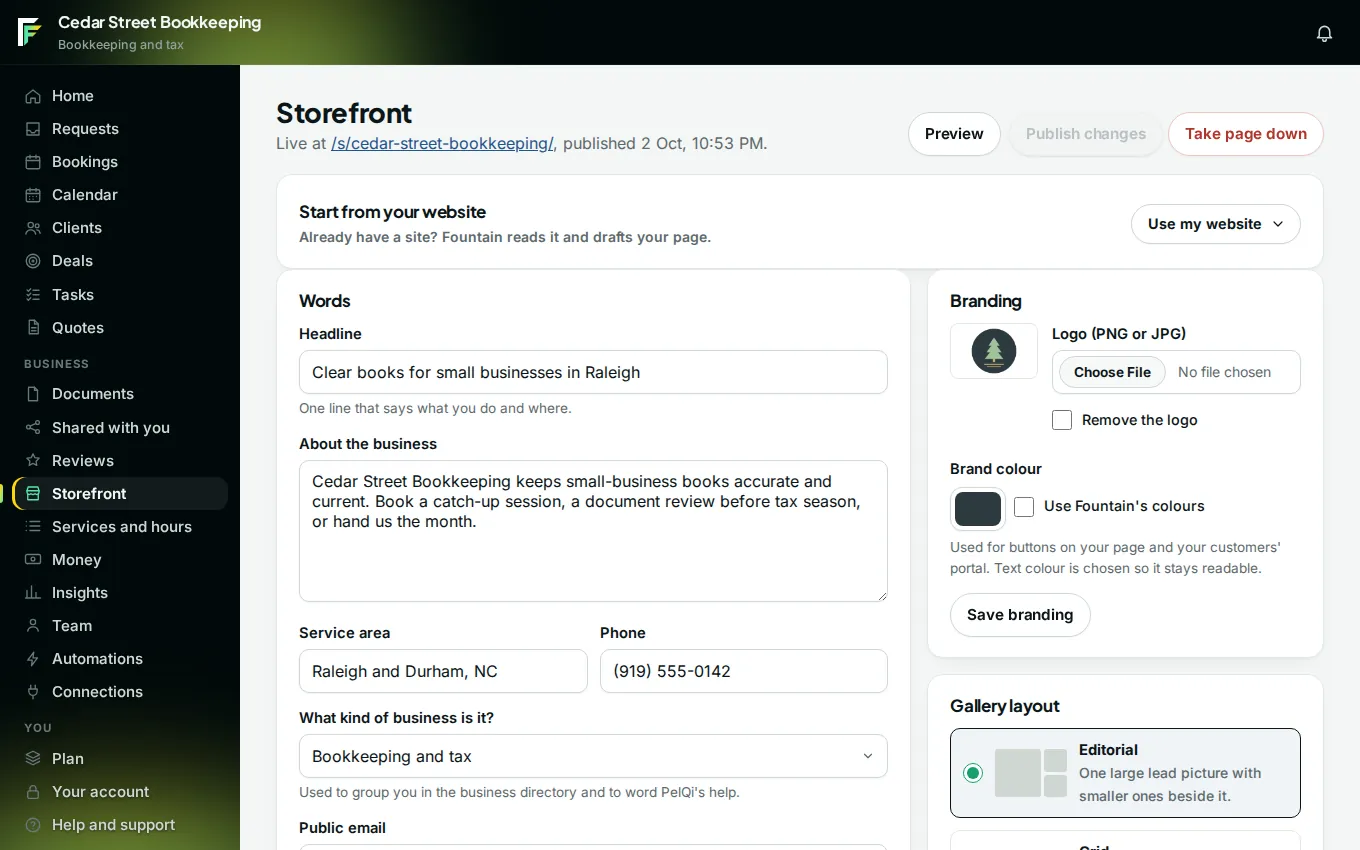
Your page is the public web page customers use to see what you offer and send you a request. You edit it on Storefront. Everything you change is a draft until you publish, so you can work on it at your own pace. Owners and managers can edit the page.
Availability Every plan. Owners and managers.
Steps
- In the menu, choose Storefront. On a phone, it is under More.
- If you already have a website, open Start from your website, choose Use my website, type your address in Your website and choose Read my website. Fountain reads that one page and drafts your words, contact details and services.
- If you used your website, tick what you want to keep under From your website and choose Keep what is ticked, or Discard the draft.
- Under Words, fill in the Headline: one line that says what you do and where.
- Write a few sentences in About the business. You need this before you can publish.
- Add your Service area, Phone and Public email, and pick an answer under What kind of business is it?
- Choose Save draft.
What it can and cannot do
- Start from your website reads one page at a time, up to 10 times a day for each workspace. When PelQi drafts the words, that counts as one of your PelQi questions. See PelQi's questions on Starter and Growth.
- Nothing from your website is saved until you tick what to keep.
- Fountain cannot read social media pages, or pages that build their words in the browser.
- The headline and service area are up to 120 characters each, and the phone number up to 40.
What you should see
A message says your changes are saved as a draft. If the page is already live, a note says you have changes that are not public yet. Nothing changes for the public until you preview and publish.
The kind of business you choose groups you in the business directory and shapes how PelQi words its help. Services and prices are set on a separate page: see Add services and prices.
If it does not work
- "You have changes that are not saved yet." Choose any Save button, or Preview, to keep them before you leave the page.
- "Keep the headline to 120 characters." The headline, service area and phone number each have a length limit. Shorten the text and save again.
- Reading your website found little or nothing. Fountain reads only the page you give it. Social media pages need a sign-in, so give the address of your own website instead, or type the words yourself.
- You cannot see Storefront in the menu. Staff accounts cannot edit the page. Ask the workspace owner. See Owner, manager and staff.
Still stuck? Contact Fortis support and a person replies by email.