
Get reviews and reply to them
Updated 18 October 2026
Reviews on your page come only from customers with a completed booking, so people can trust them. Fountain asks the customer for you when you mark a booking completed. Anyone on the team can read reviews; owners and managers can reply and report.
Availability Every plan. Owners and managers can reply and report.
Steps
- After an appointment has started, open the booking and choose Mark as completed.
- Fountain emails the customer a private link that asks how it went. They can also choose Leave a review in their portal.
- When a review arrives, you get a notification. In the menu, choose Reviews. On a phone, it is under More.
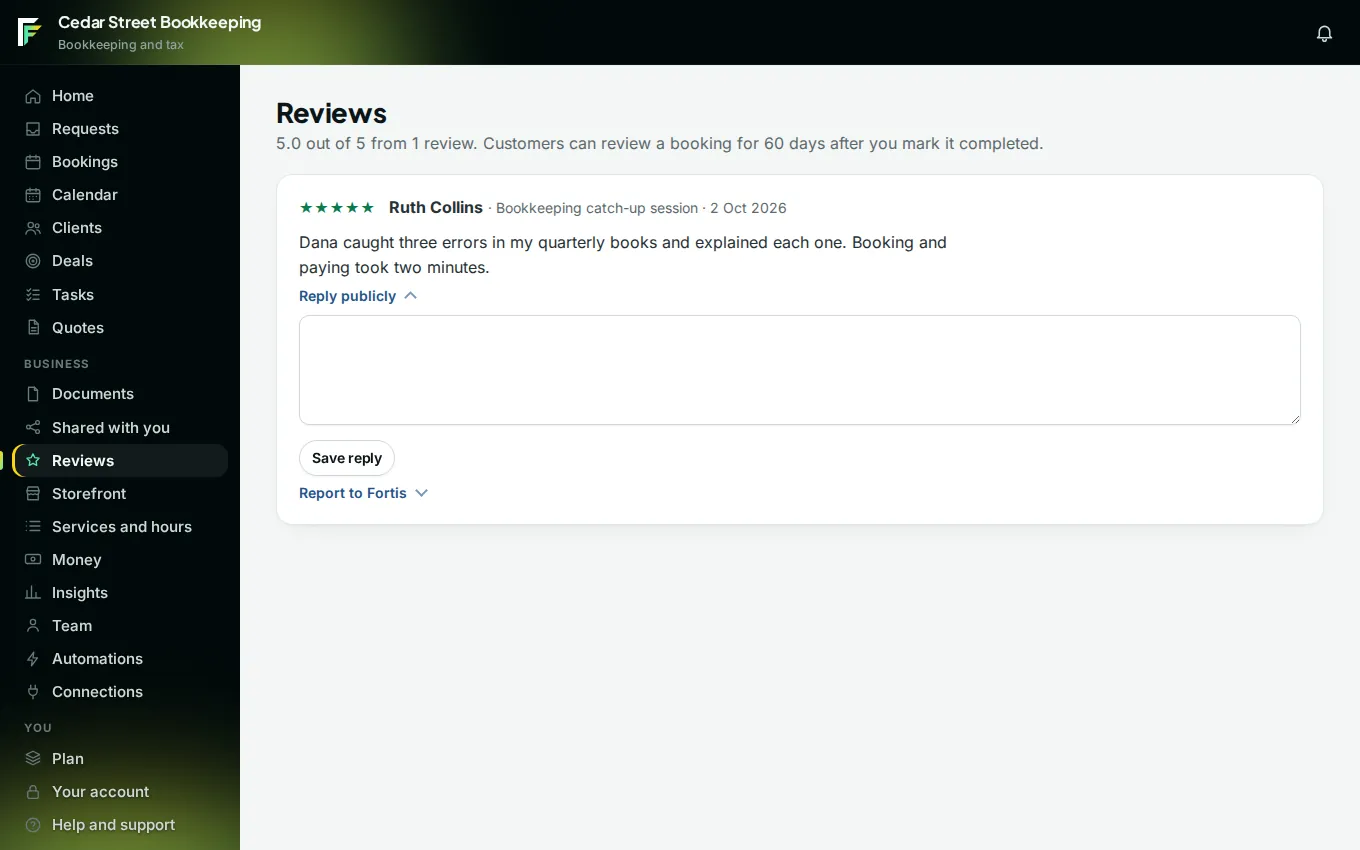
- To answer, open Reply publicly, write your reply and choose Save reply.
- To change your reply later, open Edit your reply. Saving an empty reply removes it.
- If a review is abusive, about someone else or not from a real customer, open Report to Fortis, say why, and choose Report.
What it can and cannot do
- Fountain sends one review invitation for each booking, when it is marked completed. It does not send reminders.
- Reviews come only from completed bookings in Fountain. You cannot add reviews yourself.
- Owners and managers can mark a booking completed, reply and report. Staff can read reviews only.
- Only Fortis can remove a review, and only after you report it.
What you should see
The customer gives 1 to 5 stars and can add a comment. The review shows on your page with their first name and last initial, and your average rating appears at the top of your page and in the directory. Your reply shows under the review.
A reported review shows With Fortis for review and stays visible until Fortis decides. Fortis tells you the outcome in your notifications. You cannot edit or delete a review yourself, and nor can PelQi.
Limits
- A customer can review each booking once, for 60 days after it.
- Reviews are up to 1,500 characters and replies up to 1,000.
- The customer needs an email address on their record to get the invitation.
- Clinic and care workspaces do not have reviews.
If it does not work
- You do not see Mark as completed. The booking must be confirmed and its start time must have passed, and your role must be allowed to confirm bookings.
- The customer did not get the invitation. Check they have an email address, then see Emails from Fountain are not arriving.
- "This booking cannot be reviewed." The booking is not completed, already has a review, or is more than 60 days old.
Still stuck? Contact Fortis support and a person replies by email.